Free Online Drawing Tool 2026: No Download, No Sign-Up, Actually Fun (My Favorite Picks + Try-It-Now Canvas)
🎨 Free Online Drawing Tool
Create, inspire, grow. No limits. Just you and the canvas.
I still remember the day I felt stuck. Work piled up. Thoughts raced. I opened a browser tab on my old laptop. No plan. Just clicked a drawing site. Fifteen minutes later, I had a goofy cat sketch. It looked terrible. But I smiled. Really smiled. That tiny moment changed something inside me.
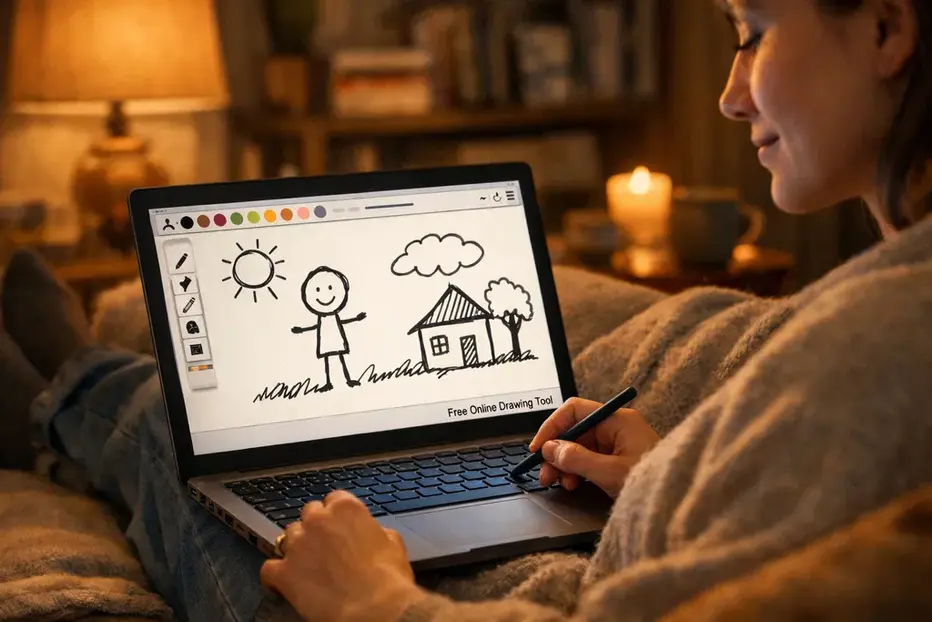
Drawing online saved me from stress more times than I can count. No fancy setup. No expensive apps. Just me, a browser, and a blank canvas. If you feel that same pull — wanting to create but scared to start — this guide is for you. I tested dozens of tools myself. I doodled on phone, tablet, Chromebook. I messed up. I learned. Now I share what actually works in 2026.
Why I Finally Stopped Overthinking and Just Started Drawing Online
Blank canvas scares everyone. Your hand freezes. “What if it looks bad?” That voice wins most days. But drawing fights back. Studies show it lowers stress fast. Cortisol drops. Happy chemicals rise. One Drexel University study found 75% of people felt calmer after 45 minutes of art-making. Harvard Health notes dopamine boosts mood and builds resilience.
I felt it personally. Bad day at work? Five minutes of scribbling. Anxiety eased. Racing thoughts slowed. Drawing became my quick reset button. You don’t need talent. You need five minutes and zero excuses. Browser tools remove every barrier. No download. No sign-up for basics. Open tab. Draw. Feel better. Scroll down. Try the canvas right here. Draw a silly face. Or a tree. Or nothing perfect. Just move the mouse. You’ll surprise yourself.
Browser-Based Magic: No Download, No Install, Just Pure Creativity
A free online drawing tool lives in your browser. HTML5 canvas powers it. JavaScript handles brushes, colors, layers. You get pen tool. Color palette. Eraser. Zoom. Export to PNG or JPG. Some add layers support. Others bring AI help. Why browser in 2026? Everything runs on phone, tablet, laptop. Chromebook users love it. No install blocks school devices. Remote work teams sketch ideas together. I prefer browser over desktop apps sometimes. Krita is great. But waiting for launch kills the mood. Browser? Instant joy.
The 5-Step “No-Regret” Framework I Use Every Time
I wasted hours on bad tools. Clunky brushes. Forced logins. Lost drawings. Now I follow this simple checklist. It saves time. It keeps joy alive.
This framework beats perfectionism. Start small. Build confidence. You control the process.
Honest Head-to-Head: AutoDraw vs Canva Draw vs Sketchpad vs Excalidraw and More
I opened every tool. Drew the same cat ten times. Noted what felt good. What frustrated me. Here’s the truth from my hands-on tests in 2026.
AutoDraw
Google’s gem. Draw a wobbly circle. It suggests perfect shapes. Fast for beginners. No sign-up. No layers.
Pros: AI magic helps shy hands. Super simple.
Cons: Limited brushes. No advanced control.
Best for: Kids, quick ideas. My rating: 9/10 for fun factor.
Canva Draw
Sits inside Canva. Great pens. Markers. Highlighter. Shape Assist AI. Real-time collab.
Pros: Mind maps shine. Export easy.
Cons: Needs Canva login for full save.
Best for: Team brainstorming. My rating: 8/10.
Sketchpad
Rich brushes. Layers. Import PSD. Export PNG, SVG, PDF.
Pros: Feels pro without complexity.
Cons: Slightly heavier load on old devices.
Best for: Serious doodles. My rating: 9/10 personal favorite.
Excalidraw
Hand-drawn whiteboard look. Live collab. Library shapes.
Pros: Zero friction. Open-source feel.
Cons: Less paint-like brushes.
Best for: Diagrams, students. My rating: 8.5/10.
Adobe Express Draw
Clean brushes. Symmetry tool. Coloring pages.
Pros: Polished feel.
Cons: Some features push premium.
Best for: Clean illustrations. My rating: 8/10.
Picsart Draw
Brushes plus AI edits. Layers.
Pros: Creative extras.
Cons: Can feel busy.
Best for: Mixed media. My rating: 7.5/10.
Draw Chat
Draw on images, PDFs. Multiplayer.
Pros: Tutoring magic. No account.
Cons: Basic brushes.
Best for: Sharing screens. My rating: 8/10.
DrawIsland
Ultra simple. Layers. Multi-page.
Pros: Instant start.
Cons: Fewer tools.
Best for: Quick sketches. My rating: 7/10.
Google Drawings
Basic shapes. Collab via Drive.
Pros: Free with Google.
Cons: Needs account.
Best for: Charts. My rating: 9/10.
KRESKA art (bonus rising star)
Smooth brushes. Layers. No ads. Chromebook friendly.
Pros: Procreate-like feel in browser.
Cons: Still growing features.
Best for: Serious painting. My rating: 9/10.
Pick one. Test it. Switch if it doesn’t click. No guilt.
Stop Reading. Start Drawing. Here’s Your Free Canvas (No Sign-Up)
Enough talk. Feel the pen. I built this right into the page. Brush size slider. Color grid. Random ideas. Undo. Redo. Download PNG. Clear if you hate it. Click and drag. Touch works too. Mobile? Tablet? It resizes. Today’s idea pops up. Or click “Get Idea” for fresh ones like “Draw a cozy coffee shop” or “Sketch a flying dragon.”
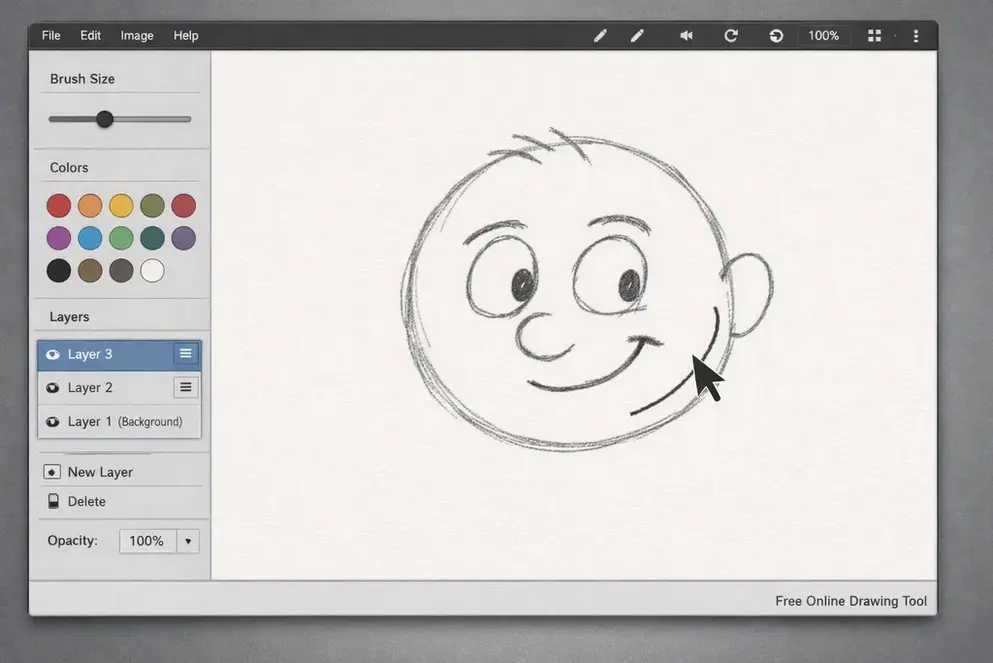
Mess up? Undo. Start over. No judgment. Go ahead. Draw something now. I’ll wait. Finished? How did it feel? That first line always hits different.
From Zero to “Wow, I Made That” – Step-by-Step Guide
You stared at the canvas. Heart raced a bit. Good. That means you care.
Follow this 10-minute path. Use the widget above.
Next time try layers. Opacity. Grid. You grow fast. I started exactly here. Thin lines scared me. Thick brushes saved me. Now I draw daily.
What Most Guides Miss: Psychological Benefits + Power-User Tricks
Drawing heals quietly. It forces focus. Mind stays present. Anxiety fades.
I use it as therapy. Bad mood? Draw flowers. Anger? Sharp lines. Calm returns.
Tricks I learned:
Drawing isn’t about perfect art. It’s about feeling alive.
Free Online Drawing Tool FAQs – Answered Honestly
What is the best free online drawing tool?
Depends on you. Beginners love AutoDraw. Layers? Sketchpad or Kleki. Collab? Excalidraw or Draw.Chat. Try the canvas here first.
Can I draw online without downloading or signing up?
Yes. AutoDraw, Kleki, Sketchpad, DrawIsland, Excalidraw, Draw.Chat all let you start instantly. No email needed.
Which drawing tool has layers support free?
Sketchpad, Kleki, KRESKA.art, DrawIsland, Picsart Draw. Layers change everything once you try.
Is there a free online drawing tool for kids / beginners?
AutoDraw wins. Simple. AI helps. Fun. DrawIsland too. Big brushes. Easy colors.
How do I save my drawing?
Most offer Download PNG or JPG. Click button. Saves to device. Some auto-save in browser. Download anyway.
Do these tools work on mobile or Chromebook?
Yes. All tested on phone, tablet, Chromebook. Touch works. Some shine on stylus.
Is it safe to use?
Safe. No install. Runs in browser. Drawings stay local unless you share. No personal data needed.
Can I use it offline?
Most need internet to load. After load, some work offline. Excalidraw saves in browser storage.
Tools like AutoDraw alternatives?
Kleki for more control. Sketchpad for layers. Excalidraw for clean collab.
Your Creativity Is Waiting — Start Right Now
You made it this far. That means part of you wants this. From blank page fear to first download pride. That journey takes minutes. The best tool? The one you open today. Use the canvas above. Draw anything. Ugly is fine. First steps always are. Come back. Tell me what you created. A cat? A tree? A mess? I read every comment. I cheer every try. Your hand knows what to do. Let it. Drawing Ideas